TABLE OF CONTENTS
- Introduction
- How to set it up for your personal preferences
- The categories of notification-events
- Built-in help for understanding the notification events
- Viewing the event history
- Controlling what events to see for specific EA
Introduction
When a particular event occurs in the application, you may or may not want to be made aware of it.
This article will help you understand which categories of events there are and an idea of the types of notification to turn on or off for each of them.
You will also get an understanding of how these can be controlled at an individual Exchange Agreement (EA) level, supporting different notifications for different EAs.
If you have any unread notifications, you will see a "blue number" over the "bell"-icon at top right of web page:

How to set it up for your personal preferences
When clicking the above "bell"-icon you will see a "cogwheel" that, if pressed, will allow you to configure which notifications you will get (personal setting). The list of notification settings will vary depending on your Role within the application.
The categories of notification-events
The screenshot below is showing 4 different sections for the form for managing event notifications:
- A list of how may events exist in total (56) as well as how many are "turned on" for in-app and email notification.
- Buttons for turning on/off ALL events for each type (in-app and email). Warning: Change here is instantaneous and irreversible, so you do not want to press any of these buttons if you have painstakingly selected which events you wanted manually...
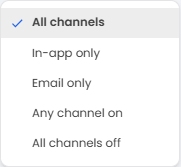
- Filter options: Filter criteria, "Expand/Collapse all"-button, and "channel" filter:
- The categories seen when list is collapsed, where each category shows how many events are "turned on" for each of the in-app and email types.
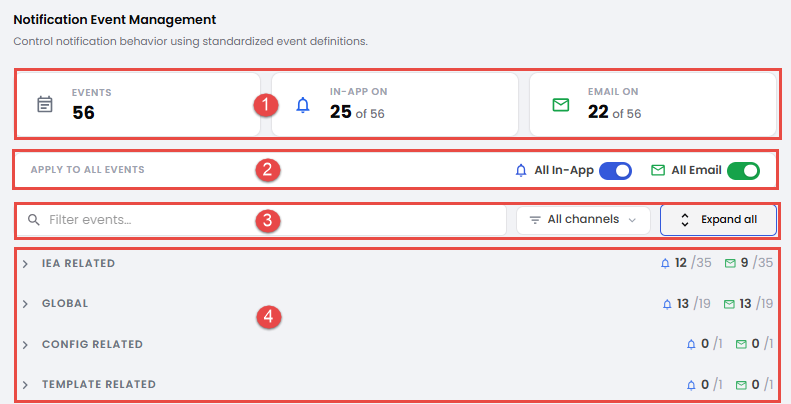
When (5) is pressed all categories (6,7,8,9) are collapsed and easy to see. See next screenshot for expanded view.
The maximum number of notification events to control for each category is:
- EA Related: 35
- Global: 19
- Config Related: 1
- Template Related: 1
Note: The numbers above relate to having the role of System Admin, for other roles they will be smaller.
Built-in help for understanding the notification events
For each of the notifications, there is a "i"-icon that, when hovered over, will give some supplemental information that may be useful:
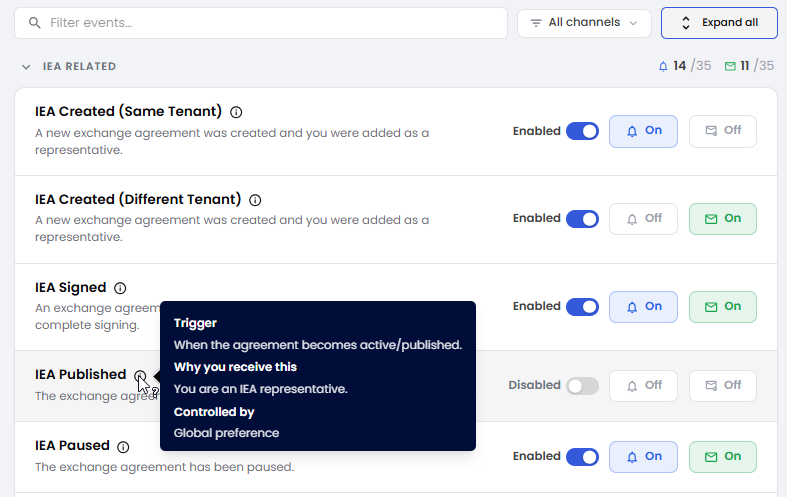
The list of notification events provides useful information notes.
Viewing the event history
As mentioned at the top of this article, the "bell"-icon will indicate if you have any unread notification messages, and you can also see the events that are un-read, having a "dot" to the right of the text. All of these can be seen in the "Unread" tab (see 1 below). By clicking button (2) all the unread will loose their "dot" and be removed from the list of unread. the "cogwheel"-icon (3) will direct you to form for setting up personal preferences regarding notifications (describe earlier in article).
A very useful feature: By clicking on an entry in the list, you will navigate to the source of the notification (Connector, Config, Template or EA).
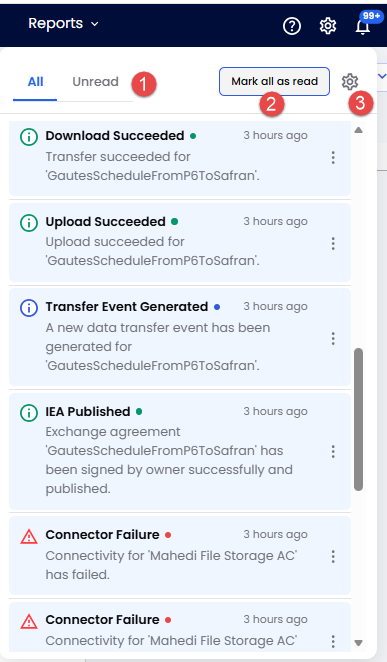 Notification history where a "dot" means "unread", and clicking on an item will navigate to the source of the notification.
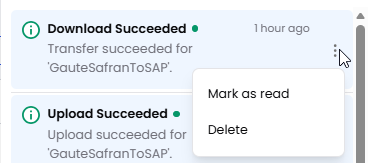
The "three-dot"-menu allows to setting an item as read/unread as well as deleting it from your history.
Controlling what events to see for specific EA
Depending on which notification your have "checked off" under the category "EA Related" (described in beginning of article), you will see the corresponding list of notifications to control for an EA (and to some degree depending on your role).
Note: You do not need to put the EA in Edit mode in order to change these settings - they are instantaneous updated and remembered.
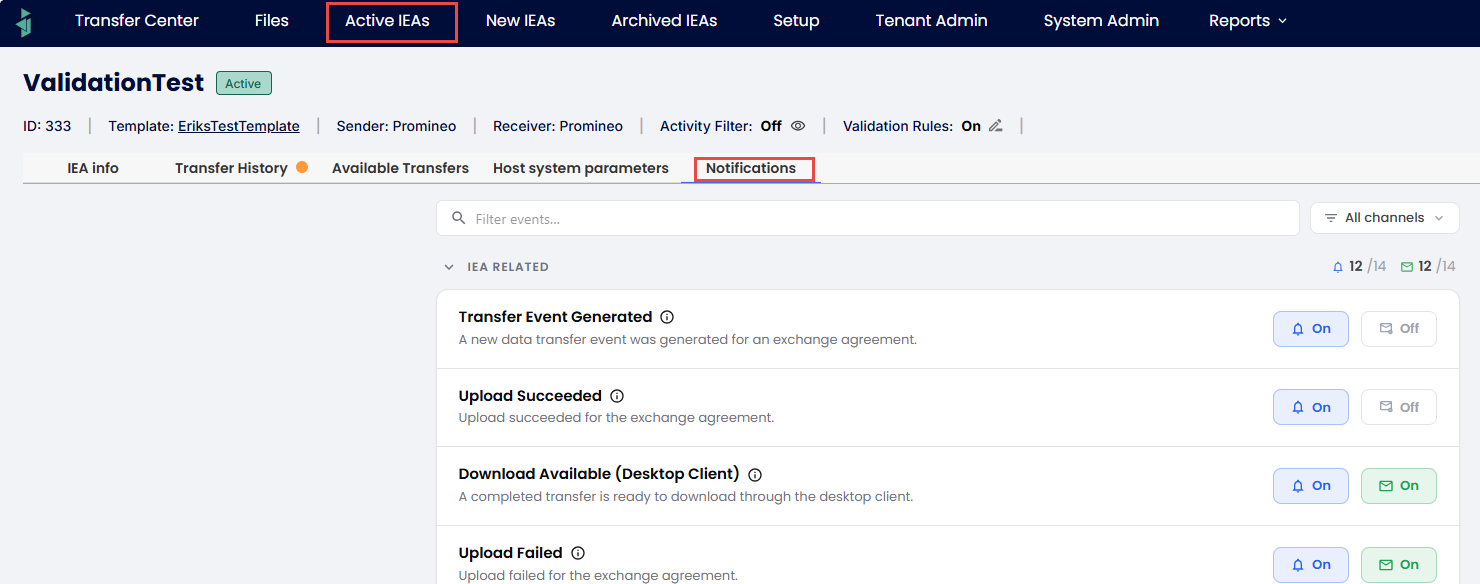
Setting notifications for specific EA in separate tab.
Was this article helpful?
That’s Great!
Thank you for your feedback
Sorry! We couldn't be helpful
Thank you for your feedback
Feedback sent
We appreciate your effort and will try to fix the article