TABLE OF CONTENTS
Introduction
This article will cover the common features used in most (if not all) forms in the SchedEx application. It will be referenced from the various articles describing the particular form so this common information is not repeated in all of them.
The Layout option icon
For each of the forms having a Grid in the entire SchedEx Web application you will see this icon, and pressing it will bring up sub-menu with options: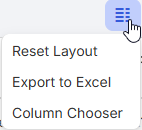
The options seen when pressing the icon.
The list of current options are:
Reset Layout
Realigns columns that may be out of sequence after a deployment update has been made of the
form. Pressing this will fix the column sequence, and changes are remembered.
Export to Excel
Show grid contents in Excel.

Example of Active IEAs grid being exported to Excel.
Column Chooser
Selects which column in grid should be visible. The choice will be remembered for each individual user, and appear next time form is opened.
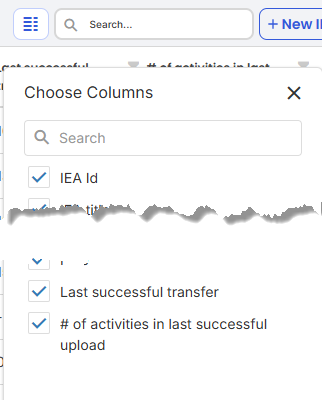 The fields to choose from (differs from each grid).
Grid features
For each of the columns in a grid, you can press a column and have it sorted on it. Pressing it again will reverse the sort order.
Each (or most) columns will have a "filter icon" in the upper right corner of the column header. By clicking this you will be able to define a filter:
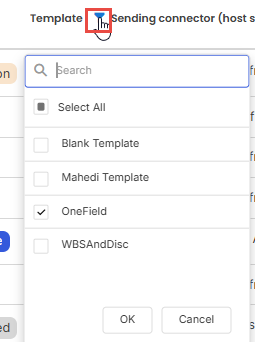
Each grid column typically has a built in filter you can apply.
The filter icon will be blue if filter has been activated, otherwise gray. Notice that you can limit the list of existing values by typing text in search box above it.
Setting date formatting in grids
In the setup meny you are able to specify which date format you want to see in all grids:
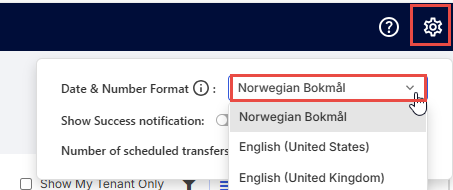
Was this article helpful?
That’s Great!
Thank you for your feedback
Sorry! We couldn't be helpful
Thank you for your feedback
Feedback sent
We appreciate your effort and will try to fix the article